Blog/Shared Inbox: Team Collaboration and Customer Support
Shared Inbox: Team Collaboration and Customer Support
Emily Rivers · May 16, 2024
A support address that one person owns becomes a bottleneck the week that person goes on holiday. A shared inbox gives the whole team access to the same messages, so any of them can pick up a customer email and the rest can see it was answered.
This guide covers what a shared inbox is, where it helps, where it breaks down, and which tools are worth looking at.
What is a shared inbox?
A shared inbox, sometimes called a shared mailbox, is one email address that several people can read and reply from. Everything arriving at support@ or hello@ lands in one place: customer emails, bug reports, sales questions.
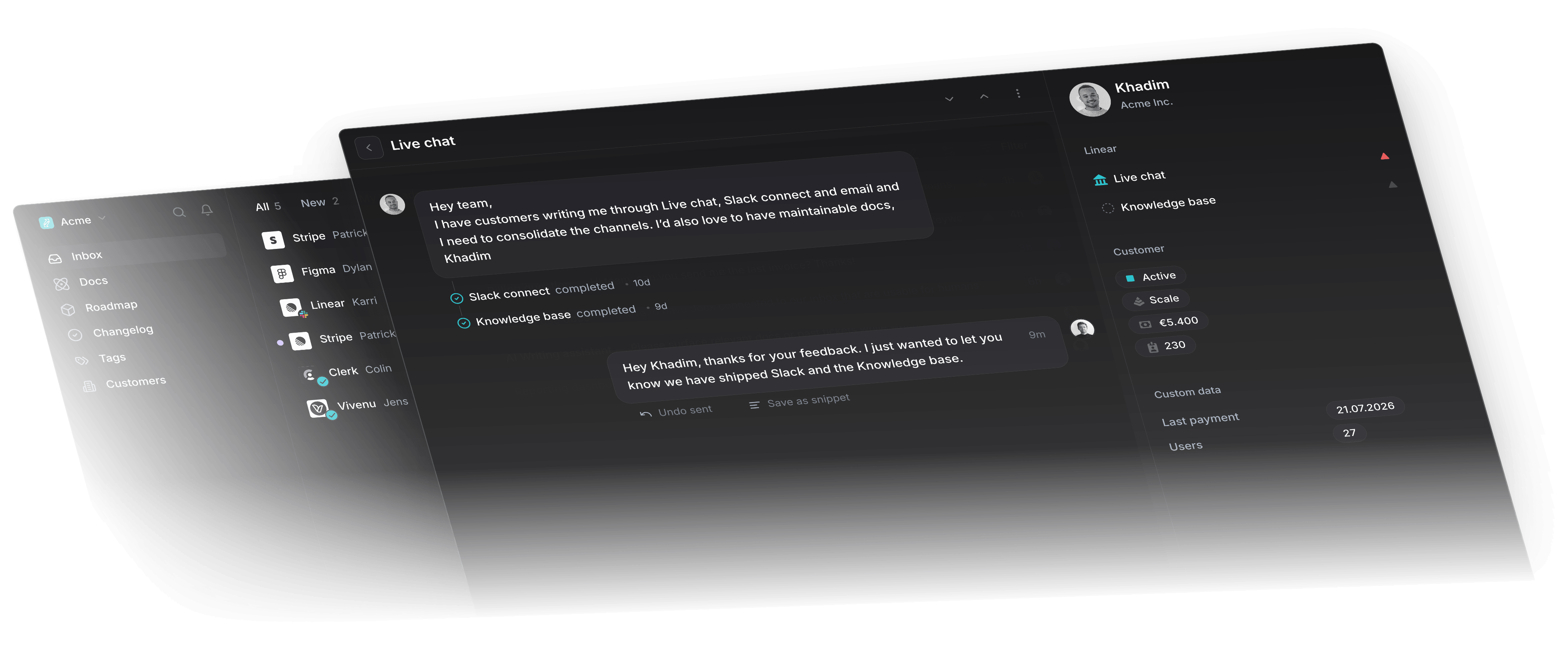
Each team member signs in with their own credentials and works the same queue. They can assign a message to whoever knows the answer, which is what makes it useful for support teams who need a colleague to weigh in on half their replies. It also spreads the load, so the fastest responder does not end up answering everything.
What is the difference between a shared inbox and a normal email account?
A normal account belongs to one person. A shared mailbox has its own address that a whole team can open, and it can also forward into each person's own inbox, so they assign threads and track what is still open without leaving email.
The security difference matters more than most teams expect. A shared inbox gives every person their own login. The alternative, one support@ password passed around the team, means an account nobody can revoke when someone leaves.
Your support inbox, built on Linear
An AI agent answers from your help center, and every bug becomes a Linear issue.
Why use a shared inbox?
One place to look: Every message sits in one queue instead of scattered across personal accounts and forwarded chains. Anyone can assign a thread to the person who should answer it.
Messages stop falling through: An unassigned thread is visible to the whole team, so it gets picked up rather than sitting in one person's unread pile.
Faster replies: Whoever is free answers first. Customers wait on the team's availability rather than one person's calendar.
Colleagues can weigh in: Internal notes sit on the thread itself, so the engineer who knows the answer writes it where the reply is being drafted.
Bug reports reach engineering: Tools like Productlane turn a support thread into a Linear issue from the inbox, with the customer still attached to it.
New hires learn from the archive: Past conversations are readable by the whole team, so answers stay consistent and someone joining in month six can see how the last hundred were handled.
Room to grow: The same setup works at three agents and at thirty. Adding a person means adding a login.
What are the limitations of a shared inbox?
Double replies: Two people open the same email and both answer it. Assigning threads fixes most of it. Collision detection, which shows you when a colleague is already typing, fixes the rest.
More people, more exposure: Individual logins help, but everyone with access can read every customer message. Run the same data protection training you would run for any system holding customer data.
It gets harder at scale: Permissions, tagging, and routing all take more work as the team grows. Pick software that handles that for you before you need it.
What is the best shared inbox?
1. Productlane
Built for support teams whose engineers work in Linear. Assign conversations, leave internal notes, and tag threads. A bug report becomes a Linear issue without leaving the inbox. When engineering closes that issue, the thread reopens so you can tell the customer it shipped.
2. Google Collaborative Inbox
Free with Google Workspace, which makes it the obvious first stop for a small team. Create a Google Group and everyone reaches it from their own account. There is no assignment and no collision detection, so duplicate replies start showing up as the team grows.
3. Outlook Shared Mailbox
Ideal for businesses already using Microsoft Outlook. If you have automapping enabled, shared mailboxes automatically appear in your client. However, there's no way to assign emails to different team members.
4. Intercom
Known for its customer messaging platform, Intercom also offers a shared inbox for managing conversations across multiple channels. Productlane integrates with Intercom, so it's easy to add conversations into your Linear issue tracker.
5. HubSpot
Part of the HubSpot CRM, so support conversations sit next to the sales and marketing history for the same contact. It connects to Gmail, Office 365, and most other email clients. Productlane syncs with HubSpot too, so you can push feedback against a contact record.
FAQ on Shared Inboxes
How do I organize my shared inbox?
Tag messages by type so you can find them later. Use internal notes to say what you are already working on. Archive anything resolved, weekly, so the queue reflects real work.
Can you log in directly to a shared mailbox?
You can't log in directly to most shared mailboxes with their own username and password. An admin gives team members access permissions to log in using their own credentials.
How do I manage a shared inbox tool with multiple team members?
Agree who owns which kind of request and write it down. Check the unassigned queue on a schedule rather than when someone complains. Use assignment and internal notes so the state of a thread is visible without asking.
Customer support for Linear
Customer support built for companies using Linear
An AI agent that fully resolves customer tickets
A help center that writes itself from your threads